# Metadata
### Data Objects
Object Classes include:
* Data files
* Apps and Applets
* Workflows
* Jobs
* Analyses
* Records
Each object receives their own unique ID
* These can be file IDs or job IDs
* These NEVER change
* The same file can be uploaded multiple times into a project; different objects will be created. The platform DOES NOT overwrite a file. Instead, it creates a new file ID every time you upload it.
* Metadata is essential to keep track of these files and their properties, since we cannot change the file ID.
The data objects can have have 2 different items of custom metadata that can be added at any point. They are:
* Tags: which are words to describe the file format, genome, etc.
* Examples: fastq, control, bam, vcf
* Properties: are key/ value pairs that can be used to describe the file
* Examples: sample\_id, value= 001
### Viewing Metadata
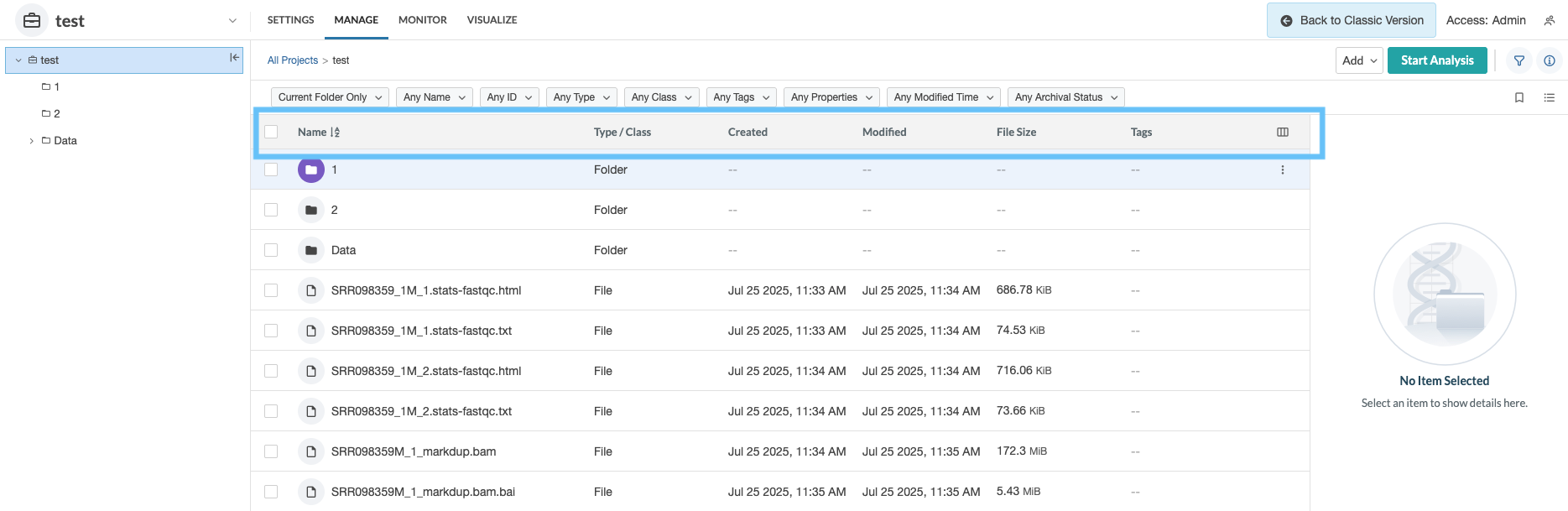
Go to your project folder and find the file information. Identify the columns for the name, type/ class, and tags. You can do this in the overview of each, without selecting the file:
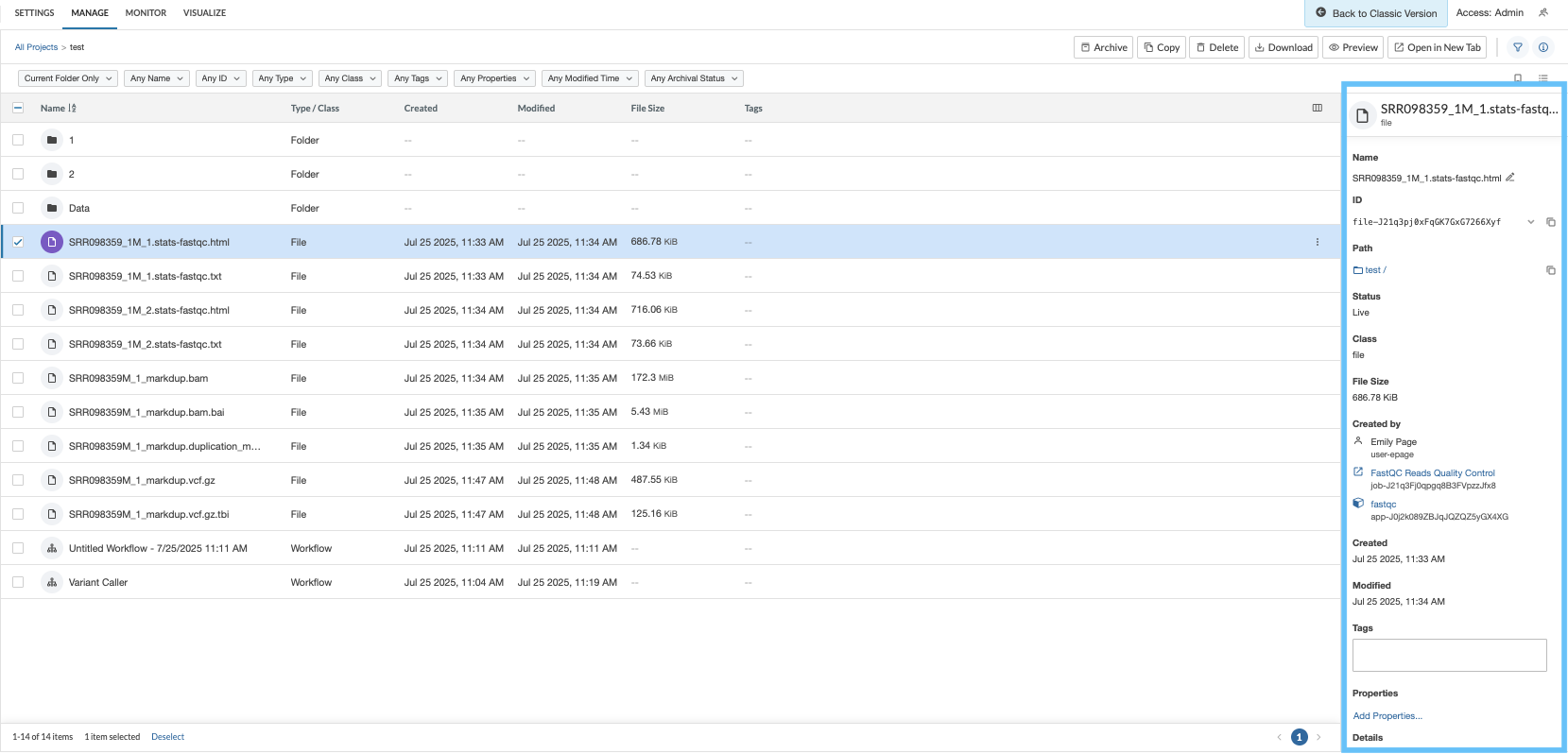
Or, you can do this by selecting each file individually to see a detailed view:
### Organization
You can sort and organize data based on pre-established and custom metadata by selecting the “column” icon in the top right. Columns can also be sorted by hovering over the title.
### Filtering Metadata
You can filer by the metadata present in the project space. The options are drop down menus above the overview of the metadata headings.
### Data Operations
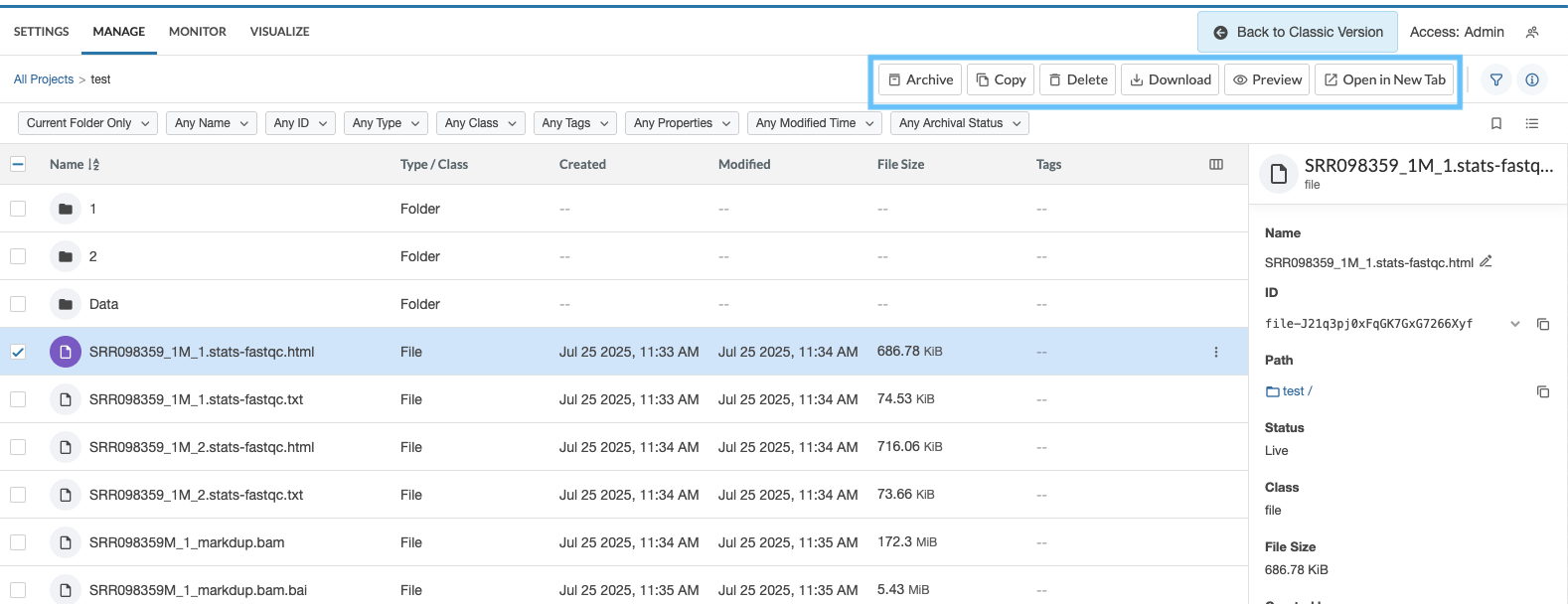
When viewing details of a particular data object, you will have a section for the data operations of a file. These include archive, copy, delete, and download. These operations will vary based on the access permission that you have for a given project. You can see the data operations available in the image below: