# Overview of a Project
On the ADAPT TAP, a project is a private collaborative workspace where users can store and share data, and perform analyses with various in-house or custom-built tools. Projects have a series of features designed to facilitate collaboration, help project members coordinate and organize their work, and ensure appropriate control over both data and tools.
## Creating a Project
When using ADAPT TAP, all work takes place in the context of a project. Projects allow a defined set of users and orgs to:
* Access specific data
* Browse, explore, and analyze this data
Once you have access to ADAPT-TAP, you can start working by creating a new project in the UI.
## Setting Up Your Project Space
Setting up a project space is subject to the User Access Control and Sharing Policies as dictated by ARPA-H. The list of the policies is present in the[ ADAPT TAP Sharing Policies section](https://github.com/DNAx-corp/ARPA-H-ADAPT-Documentation/blob/main/projects/broken-reference/README.md).
1. Navigate to the Projects list page, by selecting Projects in the UI from the main menu, then clicking All Projects.
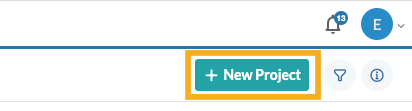
2. Click the New Project button (highlighted in gold).
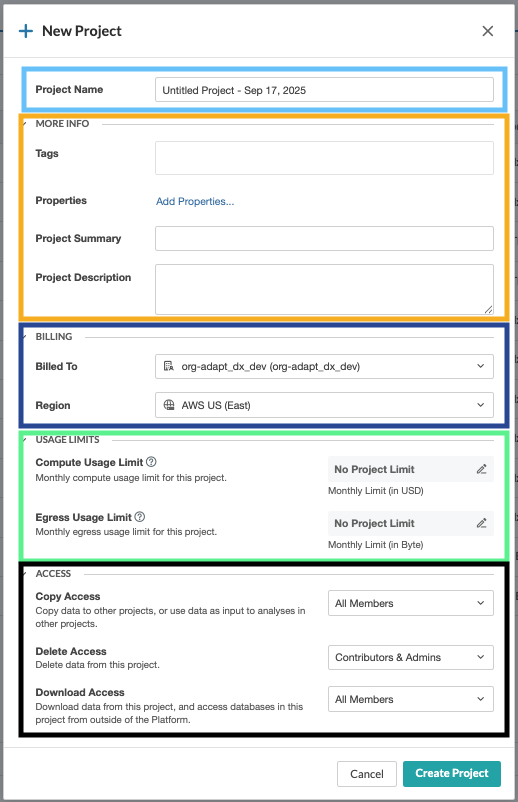
1. The New Project wizard will open in a modal window.
* In the Project Name field (highlighted in light blue), enter a name for your project.
* In the More Info section (highlighted in gold), add in the optional fields for sorting projects, such as
* Tags: If you'd like this project to appear in the My Projects list of the TAP Portal, add "adapt\_workspace" tag to it by typing this string in the Tags field and then hitting Enter/Return key or clicking away with the mouse.
* Properties
* Project Summary
* Project Description.
* In the Billing Section (highlighted in navy), select the billed to org and Region.
* In the Billed To field, choose an account to which project billable activities should be charged. Note: this should be the ADAPT org tied to your institution.
* In the Region field, select AWS US East if it is not already selected.
* In the Usage Limits section (highlighted in chartreuse), select the optional compute usage limit and the egress limit.
* Compute Usage Limits are the monthly compute usage limit for a given project. This value is in USD ($).
* Egress Usage Limits are the monthly egress limits for a given project. This value is in bytes.
* In the Access section (highlighted in black), specify which users will be able to conduct data-related operations within the project.
* Copy Access will limit who can copy data into other projects, or who can use the data as inputs in another projects. The options are All Members or No One.
* Delete Access will limit who can delete the project. The options are Contributors and Admins or Admins Only.
* Download Access will limit who can download data from the project. The options are All Members or No One.
## Region
ADAPT TAP is hosted on AWS US East. The labels for the region will be "aws:us-east-1" in the command line or "AWS US (East)" in the UI.